Updatable Clustered ColumnStore Index
that is introduced with SQL Server 2014. Before we go down to the
details, I want to give you a brief overview about their first
appearance in SQL Server 2012, and their limitations.
ColumnStore Indexes in SQL Server 2012:
The introduction of ColumnStore Indexes in SQL Server 2012 was one of the hottest new features (besides AlwaysOn). If chosen right, they can make an impressive performance improvement for Data Warehousing workloads. Unfortunately, they had 2 big limitations:
And as soon as you had created your Non-Clustered ColumnStore Index, you were not allowed to change the underlying table data anymore – your table was just read only! Of course, there were some workarounds for this problem, like Partition Switching, but you still needed to implement that on your own…
The first most important fact is that an underlying direct update of a ColumnStore Index is not possible! It would be too time consuming to do the complete decompress and compress on the fly during your INSERT, UPDATE, and DELETE transactions. Therefore SQL Server 2014 uses help from some magic: Delta Stores and Delete Bitmaps. Let’s have a more detailed look on both concepts.
Every time when you run an INSERT statement, the new record isn’t directly inserted into the ColumnStore Index – the record is inserted into a Delta Store. The Delta Store itself is nothing else than a traditional B-Tree structure with all its pro’s and con’s. When you afterwards read from the ColumnStore Index, SQL Server returns you the data from the compressed ColumnStore Index AND also from the Delta Store.
When you run an DELETE statement, again nothing happens in the compressed ColumnStore Index. The only thing that happens is that the record is deleted logically through a Delete Bitmap. Every record in the ColumnStore Index has a corresponding bit in that Delete Bitmap. When you again read your ColumnStore Index, SQL Server just discards the rows that are marked as deleted in the Delete Bitmap.
And running an UPDATE statement just means inserting the new version into the Delta Store, and marking the old version as deleted in the Delete Bitmap. Easy, isn’t it? The following picture (source http://research.microsoft.com/apps/pubs/default.aspx?id=193599) shows this concept in more details.

Because of the Delta Stores and the Delete Bitmap it seems that your ColumnStore Index is updatable, but in reality it is just immutable. There is also a background process called the Tuple Mover, which runs regularly and finally pushes your changes asynchronously into the compressed ColumnStore Index.
In addition you can also finally define a ColumnStore Index in SQL Server 2014 as Clustered. This means that you don’t need to have your data in the traditional row store format anymore. Just create your table and create a Clustered ColumnStore Index on it. You can some with this approach huge space savings in your storage, because everything is now compressed. When you work in more details with the concepts of relational databases, Clustered always means Sorted. But with a Clustered ColumnStore Index this statement is not true: when you create a Clustered ColumnStore Index, there is NO sorting order in your data! Just be aware of this tiny little fact.
ColumnStore Indexes in SQL Server 2012:
The introduction of ColumnStore Indexes in SQL Server 2012 was one of the hottest new features (besides AlwaysOn). If chosen right, they can make an impressive performance improvement for Data Warehousing workloads. Unfortunately, they had 2 big limitations:
- There was only the support for Non-Clustered ColumnStore Indexes
- As soon as you had created a
ColumnStore Index on a table, the underlying table was read only,
and no changes to the data were allowed anymore
And as soon as you had created your Non-Clustered ColumnStore Index, you were not allowed to change the underlying table data anymore – your table was just read only! Of course, there were some workarounds for this problem, like Partition Switching, but you still needed to implement that on your own…
ColumnStore Indexes in SQL Server 2014:
Things are changing now with SQL Server 2014, because Microsoft has resolved the above mentioned issues – with some magic and illusion: SQL Server 2014 provides you an Updatable Clustered ColumnStore Index! Let’s have a more detailed look on how this magic and illusion happens internally in SQL Server.The first most important fact is that an underlying direct update of a ColumnStore Index is not possible! It would be too time consuming to do the complete decompress and compress on the fly during your INSERT, UPDATE, and DELETE transactions. Therefore SQL Server 2014 uses help from some magic: Delta Stores and Delete Bitmaps. Let’s have a more detailed look on both concepts.
Every time when you run an INSERT statement, the new record isn’t directly inserted into the ColumnStore Index – the record is inserted into a Delta Store. The Delta Store itself is nothing else than a traditional B-Tree structure with all its pro’s and con’s. When you afterwards read from the ColumnStore Index, SQL Server returns you the data from the compressed ColumnStore Index AND also from the Delta Store.
When you run an DELETE statement, again nothing happens in the compressed ColumnStore Index. The only thing that happens is that the record is deleted logically through a Delete Bitmap. Every record in the ColumnStore Index has a corresponding bit in that Delete Bitmap. When you again read your ColumnStore Index, SQL Server just discards the rows that are marked as deleted in the Delete Bitmap.
And running an UPDATE statement just means inserting the new version into the Delta Store, and marking the old version as deleted in the Delete Bitmap. Easy, isn’t it? The following picture (source http://research.microsoft.com/apps/pubs/default.aspx?id=193599) shows this concept in more details.
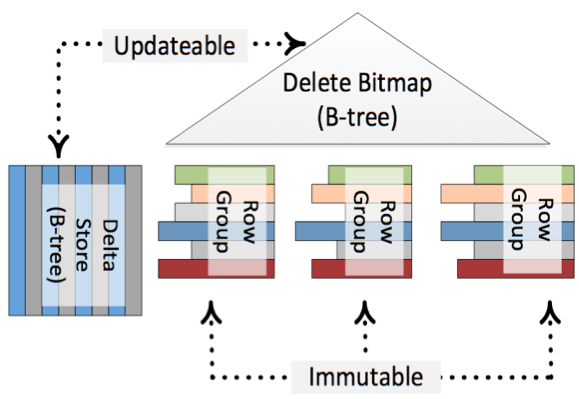
Because of the Delta Stores and the Delete Bitmap it seems that your ColumnStore Index is updatable, but in reality it is just immutable. There is also a background process called the Tuple Mover, which runs regularly and finally pushes your changes asynchronously into the compressed ColumnStore Index.
In addition you can also finally define a ColumnStore Index in SQL Server 2014 as Clustered. This means that you don’t need to have your data in the traditional row store format anymore. Just create your table and create a Clustered ColumnStore Index on it. You can some with this approach huge space savings in your storage, because everything is now compressed. When you work in more details with the concepts of relational databases, Clustered always means Sorted. But with a Clustered ColumnStore Index this statement is not true: when you create a Clustered ColumnStore Index, there is NO sorting order in your data! Just be aware of this tiny little fact.

